|
Take Control of the Event Log
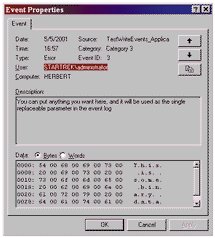
I'll show you how to create the necessary Message (and optional Category) files through a simple UI in a semiautomated way, then compile them with a batch file created by the UI without having C++ installed. I'll also demonstrate how to create a component (ActiveX DLL) to encapsulate writing to any of the NT event logs (except the Security logs), including the additional logs available on Windows 2000 or later. You can include binary data and a category optionally. The component includes the user's name, and you have complete control over the data written to the description section of the log event and the EventID (see Figure 1).
| |
|
Figure 1 | Your Goal: A Clean Event Log Entry. Click here.
|
The Description field for an event log event is based upon information retrieved from a resource file. Microsoft decided that event logs should support event reporting in the local system's language (see the sidebar, "Why It's the Compiler From Hell"), and it accomplished this goal by using resource executable files (DLLs or EXEs), each of which include a message resource (resource type 11 for you C++ types).
You can create the message resource in a text editor such as Notepad. The Message Compiler (MC.exe) creates a *.BIN, *.RC, and *.H file. The Resource Compiler (RC.exe) then creates the compiled resource file (*.RES). Finally, the linker (Link.exe) compiles that resource file into a standard (non-OLE) DLL. Even though early articles from Microsoft suggest you need a stub DLL as an entry point, you actually don't. VB includes Link.exe, and RC.exe is available on VB's installation disk under the ..\Tools directory. The MC.exe doesn't come with the VB6-only install, but you can get it by downloading the Platform SDK (see Resources). Note that these DLL files are standard DLLs, not ActiveX components, so you don't need to register them through RegSvr32.exe. They do need their own specialized registration, but I'll cover that detail later.
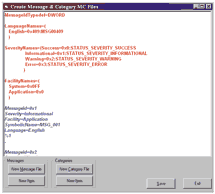
Creating the message resource files can be somewhat confusing, so I've created a simple, standalone UI called CreateMC.exe to help you create both message and category files (see Figure 2). You can use the buttons at the bottom of the screen to add a header (New Message File or New Category File) or add messages/categories to the header (New Item). I've color-coded the two different parts of the file for ease of use. You get a popup that allows you to select the error level (Information, Warning, or Error) when you add an item to the message header.
Think of the entered text as a template. In Figure 2, the first item has a message ID of 1, a severity level of Information, and a text of "%1" (a single replaceable parameter). You could modify it to have, for example, a message ID of 1001, a severity level of Warning, and a text of "The file, %1, could not be located." (Download the source code.) One gotcha for the category files is that the index values must begin with 1 and increase sequentially (this doesn't apply to the message file).
Make Use of Categories
Category resource files might seem like overkill for your application, but categories are useful when you're searching for specific events, either manually in the event log applet or when you're using an automated program to manage the logs on multiple computers across the network. If you don't use a category resource file, you should always pass a zero to the category parameter in the ReportEvent API call (this shows up as "None" in the NT event log viewer applet).
You create three files when you hit the Save button. The first file is the *.MC file itself; the second is a BAT file to compile the message file (either Make_Msg.bat or Make_Cat.bat); the third is a simplified text dump of the choices you make before saving, ready for importing as comments into your VB program. For example, I got this in the MsgData.txt file for one run of CreateMC: ' Message IDs from EventMsgs.MC
' 1, Informational, Application
' 2, Warning, Application
' 3, Error, Application
You need both the message ID and the error level in your application program to create a record successfully in the event log that doesn't have extraneous system error messages and is easily searchable.
By default, CreateMC.exe creates the *.MC file, the *.BAT file, and the *.TXT file in a directory one level up from the current directory. So if you install the CreateMC and WriteEvents2 projects in separate directories under ..\EventLogs, CreateMC saves those files in the EventLogs directory. The TestWrit.exe program, by default, registers the message and category DLLs in the EventLogs directory.
After you create the message *.MC file (and, optionally, the category *.MC file), you need to execute the BAT file (Make_Msg or Make_Cat) to create the DLL. You can do this from Windows Explorer, but it's probably better to drop to the command line and run the batch file from there (so you can see any errors generated clearly).
The requirement for these BAT files to work correctly is that MC.exe, RC.exe, and Link.exe must all be in directories included in the PATH environmental variable, or you need to modify the batch files you create to include the full path to those executables.
Now you have the message DLL (and optionally, the category DLL). The DLLs must have a specialized registration into the NT HKEY_LOCAL_MACHINE Registry hive. You can do this registration either manually (by creating a *.REG file and running it) or programmatically. I chose the programmatic method so I could wrap everything up in one executable, but using a *.REG file might be more appropriate in some circumstances.
Under HKLM\SYSTEM\CurrentControlSet\Services\Eventlog\xxx (where xxx is the event log's name, such as Application), you need to create a new key with your application's name. Call this key TestWriteEvents_Application. Under this key, add several new values (see Table 1).
The EventMessageFile contains either the full path to the message DLL file, or a path containing environmental variables to be expanded at run time, such as %SystemRoot%\System32\ulib.dll. The TypesSupported normally contains 7, which is a combination of Error (1), Warning (2), and Information (4) types. If you're writing to the Security log, you might also have Success Audit or Failure Audit.
|




 Introduction
 Introduction
 Categorize Them All
 Write an Entry Successfully